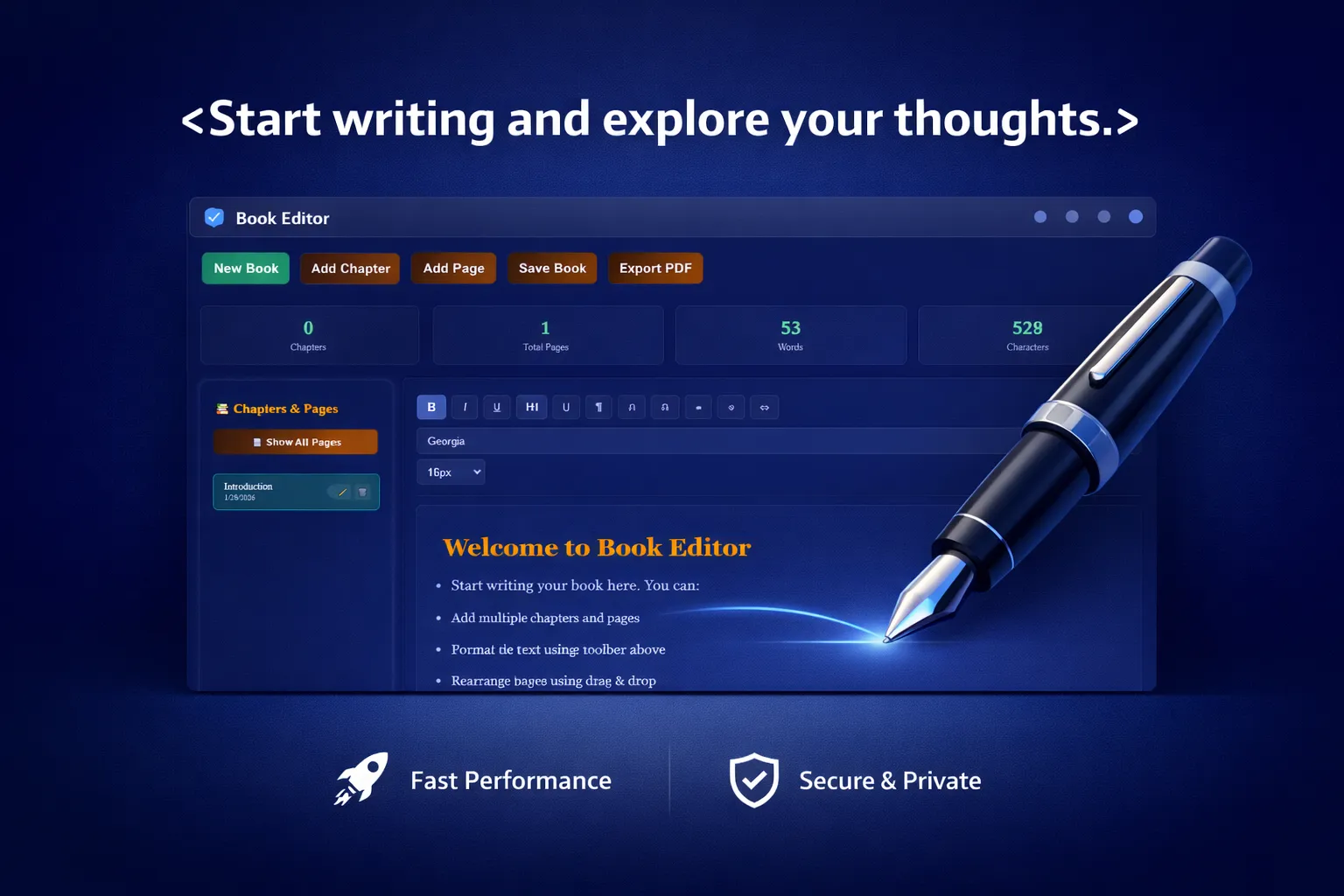
Welcome to Book Editor Pro
Start writing your book here. You can:
- Add multiple chapters and pages
- Format text using the toolbar above
- Rearrange pages using drag & drop
- Choose different page sizes
- Export to professional PDF
First click Add Chapter, rename it, and then use Add Page to start writing your book.
⚙️ Book Settings
Top
Bottom
Left
Right
📊 Live Preview
This is a preview of how your page will look in the exported PDF.
Complete Guide to Book Editor Pro
How Book Editor Pro Is Structured
Book Editor Pro is designed with a clear and practical structure to help you write, organize, and export books efficiently. The entire workflow is divided into three core sections, all available on a single page for a smooth and distraction-free experience.
- Indexing Panel – Organize chapters and pages
- Editor Area – Write and format your content
- Export Section – Download your completed book
1. Indexing Panel (Chapters & Pages)
Proper indexing is one of the most important parts of writing a good book. Even well-written content can lose its value if chapters and pages are not structured correctly. Book Editor Pro provides a dedicated indexing panel to manage this efficiently.
New Book
Clicking the New Book button creates a fresh project with a clean structure, allowing you to start writing from scratch without affecting any previously saved work.
Add Chapter
Chapters represent higher-level sections of your book. A single chapter can contain multiple pages. You can create multiple chapters, assign custom names to them, and use them to logically divide your book content.
Add Page
Pages are added inside a selected chapter. Simply select a chapter and click Add Page to create the first page under that chapter. You can add multiple pages, rename them, or reorder them as needed.
Important Indexing Rules
- Only pages belonging to the selected chapter are displayed, keeping the interface clean and focused.
- If your PC shuts down or power is lost unexpectedly, your work is automatically saved every 10 seconds, ensuring minimal data loss.
Save Book
While auto-save works silently in the background, you can manually save your book at any time. This stores your project safely in local storage and allows you to download it for backup.
Load Book
Previously saved books can be loaded at any time, allowing you to continue editing exactly where you left off.
Export to PDF
Once your book is complete, you can export the entire project as a professionally formatted PDF file, ready for sharing or printing.
Export Formats
Once your book is ready, you can export it into different formats based on your final use. The editor automatically includes the latest content before export.
Best choice for final books. Print-ready layout with correct page size, margins, page numbers, and full Marathi (Devanagari) support.
DOCX
Editable Word format. Useful for further editing, proofreading, or sharing with editors.
EPUB
E-book format for mobile and e-readers. Optimized for digital reading and flexible screen sizes.
HTML
Web-ready format. Ideal for publishing your book online or viewing directly in a browser.
Editor Area – Writing, Formatting & Full Control
The Editor Area is the heart of Book Editor Pro. This is where you actually write your book, format content, and see how each page will look in the final output. Everything here is designed to feel simple, fast, and distraction-free, even while offering advanced control.
Editable Writing Canvas
The main writing area is fully editable. You can click anywhere and start typing immediately. This editor behaves like a professional document editor, but runs entirely inside your browser.
- Write normal paragraphs, headings, or lists
- Edit content anytime without restrictions
- Each page maintains its own content independently
- Content is automatically linked to the selected page
Formatting Toolbar – Explained Button by Button
The toolbar above the editor gives you full control over text appearance. Every formatting action works only on the selected text or at the current cursor position.
Text Styling Controls
- Bold (Ctrl + B): Used for emphasis, keywords, and headings
- Italic (Ctrl + I): Useful for titles, names, or emphasis
- Underline (Ctrl + U): Highlights important information
Block Formatting
- H1: Main headings, usually chapter titles
- H2: Sub-headings inside a chapter
- Paragraph (¶): Normal body text
Block formatting ensures your book remains structured and readable. Proper use of headings also improves professional appearance and export quality.
Text Alignment
- Left Align: Default reading alignment
- Center: Titles, quotations, or special content
- Right Align: Author notes or signatures
- Justify: Clean, book-style paragraph alignment
Font Controls
You can change font family and font size directly from the toolbar. These settings apply consistently across the book and are reflected in the live preview.
- Multiple professional fonts available
- Font size range from 12px to 24px
- Perfect balance for reading and printing
Auto-Save & Data Safety
While you focus on writing, Book Editor Pro silently protects your work. The editor automatically saves your progress every 10 seconds. Even if your system shuts down unexpectedly, your work is safely restored when you reopen the tool.
- Automatic background saving every 10 seconds
- No interruption while typing
- Maximum data loss limited to a few seconds
- Manual save still available for final control
Page-Specific Editing
Each page is edited independently. When you select a page from the indexing panel, its content instantly loads into the editor. This prevents accidental mixing of content between pages.
- Edit one page at a time
- Switch pages without losing content
- Each page maintains its own history and formatting
Live Feedback While Writing
The editor continuously tracks your writing statistics and formatting state. You always know what style you are using and how much content you have written.
- Real-time word count
- Character count updates instantly
- Formatting buttons reflect current selection
Designed for Long Writing Sessions
Whether you are writing a short document or a full-length book, the Editor Area is optimized for long sessions. Smooth scrolling, clean layout, and responsive controls ensure comfort and focus.
In short, the Editor Area gives you the power of a professional book-writing tool without complexity, allowing you to focus purely on writing quality content.
Preview Panel – Live Book Settings & Real-Time Output
The Preview Panel is the control and visualization area of Book Editor Pro. Everything you set here directly affects how your book will look in the final exported file. This panel works in real time, so you always see the actual result before exporting.
Book Title & Author Settings
At the top of the Preview Panel, you can define your book’s identity. These fields are not just labels – they are used across preview, exports, and file metadata.
- Book Title: Displayed on the first page and preview header
- Author Name: Shown below the title in preview and export
- Changes apply instantly without reloading
- Used in PDF, DOCX, EPUB, and HTML exports
Page Size Selection
Page size determines the physical dimensions of your book. This is especially important if you plan to print the book. You can switch page sizes at any time and preview updates instantly.
- A4: Standard for documents and books
- Letter: Common in US printing formats
- A5: Compact book and novel size
- Legal: Large format for reports and manuals
Page Orientation
Orientation controls whether the page is vertical or horizontal. This affects layout width, margins, and overall readability.
- Portrait: Default book-style vertical layout
- Landscape: Horizontal layout for wide content
- Orientation is respected during export
Margin Controls (Precision Layout)
Margins define the white space around your content. Proper margins are critical for professional printing and readability. All margin values are entered in millimeters.
- Top Margin: Space above content
- Bottom Margin: Space below content
- Left Margin: Binding-friendly spacing
- Right Margin: Outer page spacing
- Recommended minimum: 20mm for printing
Live Preview Area
The Live Preview shows how the current page will appear in the exported file. It updates instantly as you type or change settings. This preview is not decorative – it reflects real export logic.
- Displays current page content only
- Shows title, author, and page number
- Font size and spacing reflect actual output
- Helps catch formatting issues early
Why Preview Panel Is Important
The Preview Panel eliminates guesswork. Instead of exporting again and again, you can visually verify everything before final download. This saves time and prevents formatting mistakes.
- No trial-and-error exporting
- Perfect alignment before final output
- Professional results without external tools
Best Practices While Using Preview
- Always review preview before exporting
- Check margins carefully for print-ready books
- Verify title and author spelling
- Use A5 size for novels, A4 for manuals
- Keep consistent margins across all pages
In short, the Preview Panel gives you complete confidence in your final output. What you see here is exactly what you get in your exported book.
Don’t forget to check our other tool: Click the image below to try Compress PDF ⬇️